CubeVisage UI: Complete Minecraft Bedrock Menu Overhaul
CubeVisage UI is a Minecraft Bedrock resource pack that redesigns menus with 500 customizable options, command block shortcuts, and ore-themed color schemes.


Created by WiseBreeze
CubeVisage UI is a user interface overhaul resource pack for Minecraft Bedrock Edition that completely redesigns how your menus and screens look and function. Created by WiseBreeze, this pack adds practical shortcuts, recipe displays, and hundreds of customization options to speed up your gameplay.
If you've ever wished Minecraft's default menus had more features or looked different, CubeVisage UI addresses both. It's built specifically for Bedrock players on all platforms who want a more efficient, personalized interface without installing separate mods.
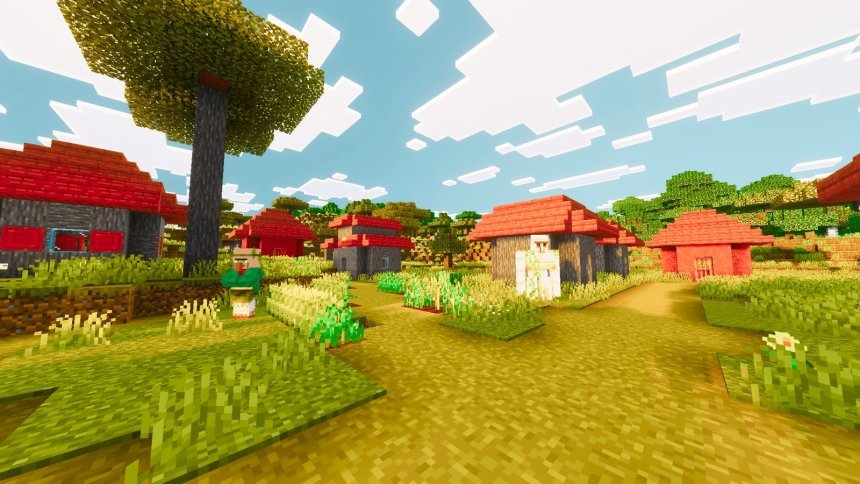
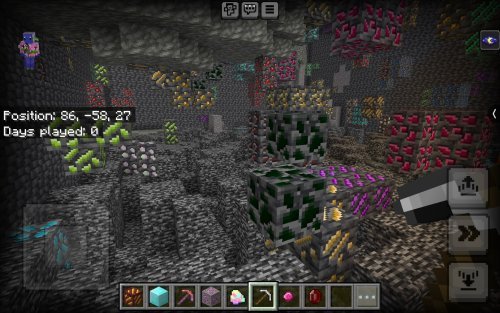
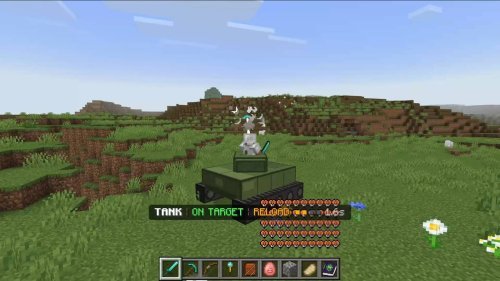
Photos by WiseBreeze
What is a UI pack in Minecraft?
A UI pack, or user interface pack, is a resource pack that changes how Minecraft's menus, screens, and HUD elements appear and sometimes function. Unlike texture packs that only retexture blocks and items, a UI pack modifies the visual design of your inventory, crafting tables, pause menu, and other overlays.
CubeVisage UI adds actual functionality beyond cosmetic changes. You get new buttons, shortcuts, and information displays that make common tasks faster. The pack works on all Bedrock platforms: Windows, Xbox, mobile, and Nintendo Switch.

Feature walkthrough: what CubeVisage UI actually changes
The pack includes over 500 customizable options, so let's focus on the standout features that actually change how you play.
- One-click delay adjustment for command blocks, so you don't have to type values into the field every time
- One-click restock and stack options for chests, making inventory management much faster
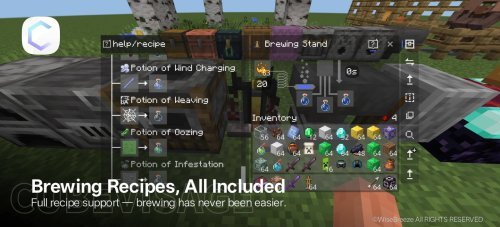
- Furnace and brewing station recipes displayed directly in the interface, so you can see what you need without opening a wiki
- Command icon display for the /summon command, letting you preview entity models before summoning
- Bundle capacity text indicator, so you know at a glance how full your bundle is
- World advanced settings access from the main menu without diving into creation screens
- Multiple ore-themed UI color schemes to match your playstyle
- In-game feature walkthrough available in the More menu for learning what each new button does
All of these are built into one cohesive pack, so you're not juggling five different resource packs to get this level of functionality.

Customization: 500 options means you control everything
CubeVisage UI isn't a one-size-fits-all pack. With 500 customizable options, you can tweak colors, toggle features on and off, adjust spacing, and pick which UI elements you want displayed. You don't have to use every feature if you prefer a minimalist approach.
The ore-themed color schemes let you make your menus match diamond, iron, copper, gold, or emerald blocks. It's a small detail that makes the interface feel less generic. If you're the type to spend time personalizing your game, this pack rewards that impulse.
Multi-language support is included, so players worldwide aren't stuck with English-only menus. That's a practical consideration that many UI packs skip.

Accessibility built in
The pack includes accessibility features, which matters if you use text-to-speech, need high-contrast elements, or require specific font sizes. It's good to see a resource pack that considers players beyond the default experience.
How to install CubeVisage UI
Installing a resource pack on Bedrock is straightforward. The pack comes as a .mcpack file. On Windows and mobile, you can usually just tap or double-click it to open it directly in Minecraft. On console, you'll import it through the pack menu in world settings.
Once imported, activate it in your world's pack list before loading in. Make sure it's above any other UI packs in the priority order so its changes take effect. If you're using multiple resource packs, placement matters. Higher packs override lower ones.
The in-game feature walkthrough in the More menu is worth checking out the first time you load in. It shows you what all the new buttons do, so you're not clicking blindly.
Frequently asked questions
What's the difference between CubeVisage UI and a regular texture pack?
A texture pack changes how blocks and items look. CubeVisage UI changes how your menus look and function. It adds buttons and shortcuts that the default game doesn't have, making it a UI pack rather than just a cosmetic texture pack.
Will CubeVisage UI work on all Bedrock platforms?
Yes. It's compatible with Bedrock Edition across Windows, Xbox, mobile, and Nintendo Switch. If your platform runs Bedrock, the pack should work. Multi-version support is mentioned, so it stays compatible as Minecraft updates.
How customizable is CubeVisage UI really?
With 500 options, you can customize almost every visual element and toggle most features on or off. You're not forced to use every addition. It's designed so you take what you want and leave the rest.
Is CubeVisage UI free to use?
Yes, but it's licensed under WiseBreeze copyright. You can view the full license agreement in-game through the More menu or in the README.md file. You can use it freely, but you can't redistribute or claim it as your own work.
Share
What's Your Reaction?
 Like
0
Like
0
 Dislike
0
Dislike
0
 Love
0
Love
0
 Funny
0
Funny
0
 Angry
0
Angry
0
 Sad
0
Sad
0
 Wow
0
Wow
0