Custom Paintings Addon for Minecraft Bedrock & MCPE
Add custom paintings to Minecraft Bedrock and MCPE with this addon. Upload images via web editor, craft painting blocks, and decorate your world with personalized artwork.


Created by AgusTheKing
Custom Paintings is an addon for Minecraft Bedrock and MCPE that lets you place any image you want as a decorative wall painting in your world. Created by AgusTheKing, it combines a web-based editor with in-game crafting to make custom artwork for your builds.
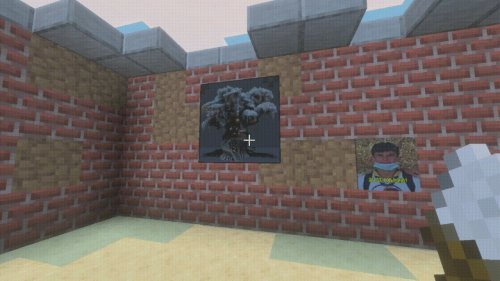
You can upload your own images and turn them into placeable blocks instead of using the vanilla paintings. You can use real photographs, digital art, community logos, or anything else that fits your aesthetic.
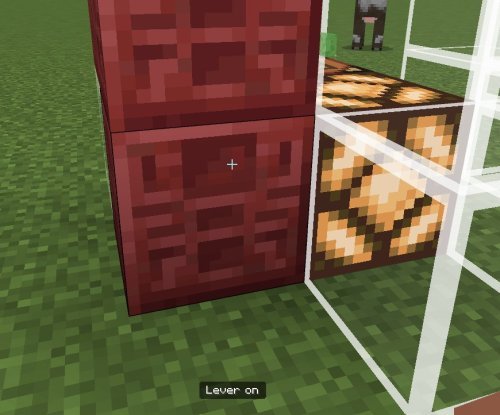
Photos by AgusTheKing
How custom paintings work in Minecraft Bedrock
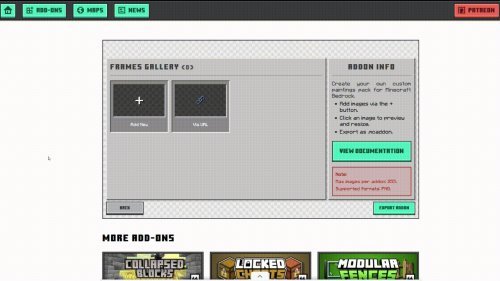
The workflow is straightforward. You use the web editor to upload images, preview how they'll look in-game, then download a personalized .mcaddon file that you install on your device. Once installed, you craft the Painting block and use a Brush tool to place your custom artwork anywhere.
The paintings themselves scale from 1x1 blocks up to 16x16 blocks, so a single image can take up an entire wall or sit as a small portrait. The same image can be placed at different scales throughout your world.
Features of this custom paintings addon
- Web-based editor that lets you upload images by file or URL
- Brush tool for placing and positioning paintings in-game
- Adjustable painting sizes from 1x1 to 16x16 blocks
- Craftable Painting block (made with paper and sticks)
- Craftable Brush tool (made with sticks and wool)
- Image preview against different block backgrounds before placing
- Bulk image management — upload multiple images at once or delete several in one go
- Automatic .mcaddon file generation that downloads straight from the editor

Real-world uses for custom paintings in Minecraft
Custom paintings have practical applications beyond decoration. Server owners can brand their worlds with custom logos and artwork. Communities can display collaborative artwork or pixel art compilations on gallery walls. Creative players hang real photographs as decorative elements in their bases, making the space feel more personal.
You can also use custom paintings to display signs, maps, or informational images in your world without relying on item frames, which cause performance issues when overdone. A painting displaying a map texture looks clean and takes up less processing power.

Setting up the custom paintings addon for MCPE
Start by heading to the web editor and uploading the images you want to use. You can upload them one at a time or batch-upload multiple files. The editor shows you a preview of each painting against typical Minecraft block colors so you can see if the image will be readable and look good in your world.
Once you're happy with your selection, the editor generates your personalized .mcaddon file and downloads it automatically. On mobile, open the file and Minecraft Bedrock will prompt you to import the addon. On Windows or console, place the .mcaddon file in your games folder, then open Minecraft and activate it in your world settings.
After installation, creative mode makes things easiest. Craft the Painting block and the Brush tool, then use the Brush to place your custom images anywhere. You can rotate and scale them to fit your space.
Customizing your addon with the web editor
The editor lets you work in both directions. You can import existing packs and modify them, changing which images are included or adding new ones. If you've shared a pack with friends or your server, you can update it later without starting from scratch.
The preview feature is useful. Before downloading your .mcaddon file, you see how the painting looks against grass blocks, wood, stone, and other common building materials. This helps you catch images that might be too dark, too washed out, or just wrong for the game's look.
Custom paintings addon vs. other decoration methods
Item frames work for small decorative items, but they're clunky for large images and slow down your game if you use too many. Paintings created with this addon are actual blocks, so they render efficiently. A painting on a wall looks better than an item frame floating in front of one.
Custom texture packs and resource packs can change vanilla paintings, but they're limited to the game's built-in painting slots. This addon sidesteps that entirely. You get unlimited custom images, and you control them all from a single editor.
FAQ: Custom paintings for Minecraft Bedrock and MCPE
Can I use custom paintings on a Minecraft server?
Yes. If you run the server, you can install the addon on it and players will see your custom paintings. If you're a player on someone else's server, the server owner needs to install the addon for it to work for you.
What image formats does the custom paintings editor accept?
The editor accepts standard image file formats, and you can also paste image URLs directly. Check the editor itself for the exact list of supported formats, but common ones like PNG and JPG work fine.
How do I install the .mcaddon file after downloading it?
On MCPE (mobile), tap the file and select Minecraft Bedrock to import it. On Windows 10/11, move the .mcaddon file to your games folder, then open Minecraft and go to world settings to activate the addon. Console users can follow similar folder-placement steps depending on their platform.
Can I adjust the size of a painting after placing it?
Yes. The Brush tool lets you place paintings in different sizes, so you can place the same image at 1x1, 4x4, or 16x16 depending on where you want it and how much wall space you're filling.
Share
What's Your Reaction?
 Like
0
Like
0
 Dislike
0
Dislike
0
 Love
0
Love
0
 Funny
0
Funny
0
 Angry
0
Angry
0
 Sad
0
Sad
0
 Wow
0
Wow
0