How to Download Astra 16x PvP Texture Pack for Minecraft Bedrock Edition
Learn how to download and install the Astra 16x PvP Texture Pack for Minecraft Bedrock Edition. This easy guide explains every step from checking your version to activating the pack so you can enjoy a smooth, space themed PvP experience on any device.

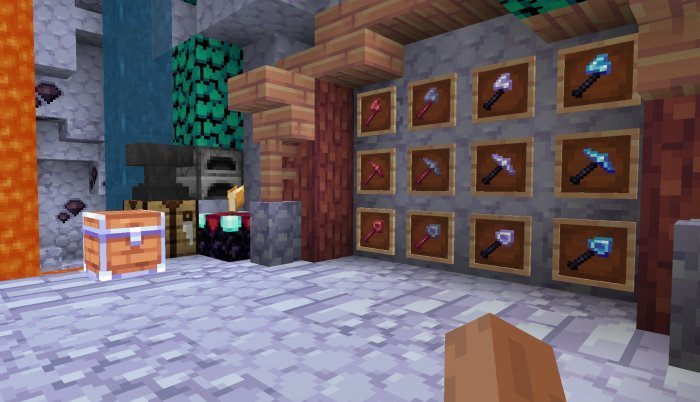
The Astra 16x PvP Texture Pack is one of the best looking space themed packs for Minecraft Bedrock Edition. It was created by Shadow Eagle and released on MCPEDL on April 30, 2024. The pack gives Minecraft a cool blue space vibe while keeping your gameplay smooth and fast. With a simple 16x resolution, it runs great on any device without lag. If you love PvP and want your game to look clean and futuristic, this guide will show you how to download and install the Astra 16x PvP Texture Pack easily.
First, make sure your Minecraft Bedrock Edition is up to date. The Astra 16x pack was made for version 1.20 and later updated to support 1.21, so any newer version should work fine. To check your version, open Minecraft and look at the bottom right corner of the main menu. If it says something older than 1.20, you should update it through your app store or console store. Updating first will help prevent bugs or crashes later.
Next, you need a safe website to download the pack from. The best and most trusted source is MCPEDL since that’s where Shadow Eagle first posted it. Open your browser and search “Astra 16x PvP Texture Pack Minecraft Bedrock MCPEDL.” On the page, scroll until you find the official download link. The file should be labeled for version 1.20 or 1.21 and end in .mcpack. Avoid sketchy links or pop ups. The pack is small, under 10MB, so it should only take a few seconds to download.
When the download finishes, check your Downloads folder for the .mcpack file. This is the file that Minecraft uses to import the texture pack. On a Windows computer, double click it, and Minecraft will open automatically and start importing it. When it finishes, you’ll see a message saying “Successfully imported Astra 16x.” On iOS or Android, open your downloads app or file manager, tap the file, and confirm when Minecraft opens. It will import just like on PC.
If you’re on a console like Xbox, PlayStation, or Switch, you’ll need to transfer the pack from a PC or phone. Xbox users can use a USB drive or the Xbox app, while PlayStation and Switch players might need to use cloud storage or a file explorer app that works with Minecraft. Once imported, the pack will appear inside your game’s resource pack list.
Now that it’s installed, you need to activate it. From Minecraft’s main menu, go to Settings. Scroll to Global Resources under the General section. You’ll see Astra 16x in the Available Resource Packs list. Click the plus button to move it into the Active list. If you already use other packs, move Astra 16x to the top so it takes priority. Exit settings and the pack will automatically load next time you open a world or join a server.
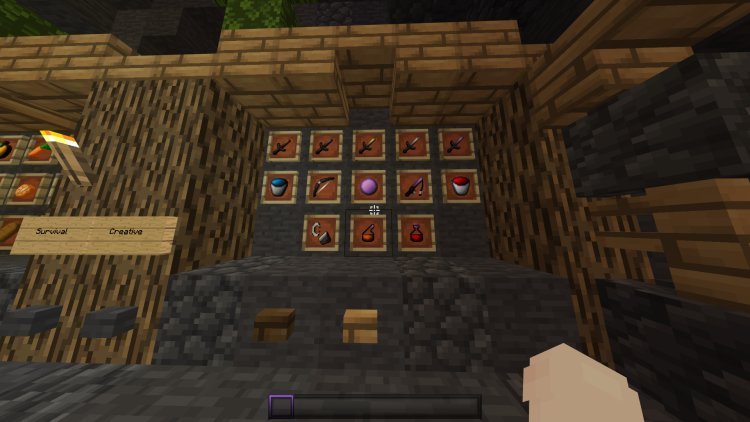
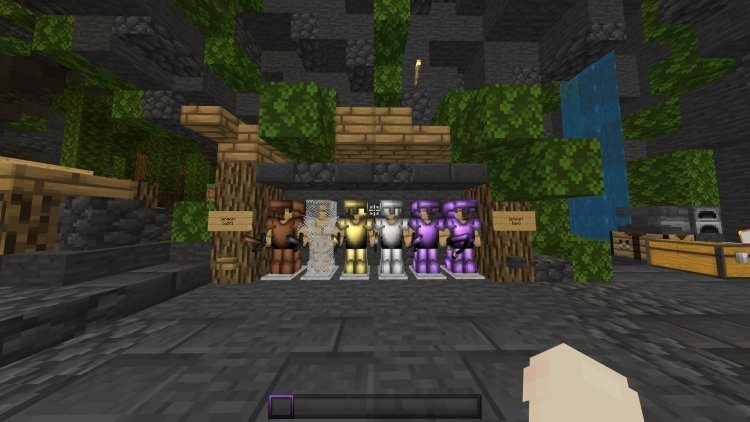
After activating it, it’s time to test the pack. Load up a PvP server like The Hive, CubeCraft, or NetherGames. You’ll instantly notice the space theme with blue tones and cosmic skies. The swords and tools look sleek and futuristic. The armor has a shiny clean design and the user interface has small tweaks that make menus easier to read. Everything feels crisp and light, perfect for PvP battles in Bedwars, Skywars, or Capture the Flag. The 16x resolution keeps frame rates high, even during big fights.
If the pack doesn’t show up in game, try reopening Minecraft or re importing the file. Also make sure you’re running the latest version of the game. A few players noticed a purple and black box bug on older versions, but that was fixed in the August 2024 update. If it still happens, download the newest version from MCPEDL again. That usually fixes it.
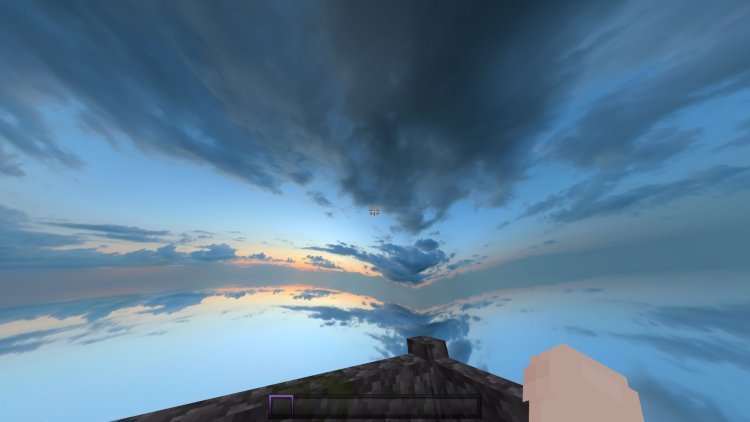
The Astra 16x PvP Pack stands out because it blends performance and design perfectly. The 16x textures look simple but clean, keeping the game sharp without extra lag. The color palette focuses on cool blue shades that fit the space theme and make the environment feel calm and futuristic. These changes also make enemies and blocks easier to see, which is great for fast PvP modes.
The pack updates common PvP elements like swords, armor, and tools to make them visually distinct while still smooth. The sky texture gives the world a cosmic look that matches the theme. The interface has small blue details that make it feel more unified and modern. It’s a small touch that helps the whole experience feel fresh.
Even though the design looks detailed, it’s still lightweight. Because it’s only 16x resolution, the pack works well on all platforms, from Windows and mobile to console. You won’t have to worry about frame drops or slow performance. That’s what makes Astra 16x so popular among players who want better visuals without giving up speed.
If you use shaders or other packs, you can stack them with Astra 16x for extra effects. Just make sure Astra stays near the top of the active list so its main textures stay visible. You can remove it anytime by going back to Global Resources and clicking the minus sign. This turns it off but keeps it installed in case you want to use it again later.
The Astra 16x PvP Pack has become a fan favorite because it looks good and runs even better. It gives players a cool, space inspired design while staying light enough for any device. It’s especially loved by people who play competitive modes like Bedwars or Skywars since clear visuals can make a real difference.
In summary, downloading and installing the Astra 16x PvP Texture Pack for Minecraft Bedrock Edition is quick and simple. Update your game, download the .mcpack from MCPEDL, open it to import, then activate it in Global Resources. After that, jump into your favorite PvP world and enjoy the blue futuristic style. The Astra 16x Pack is perfect if you want your Minecraft to look cooler while still running smooth. It’s a small change that makes a big difference in how your game feels.
Share
What's Your Reaction?
 Like
0
Like
0
 Dislike
0
Dislike
0
 Love
0
Love
0
 Funny
0
Funny
0
 Angry
0
Angry
0
 Sad
0
Sad
0
 Wow
0
Wow
0