How to Download Icy PvP Pack 32x for Minecraft Bedrock Edition
Learn how to download and install the Icy PvP Pack 32x for Minecraft Bedrock Edition. This easy guide explains every step from checking your version to activating the pack, so you can enjoy smooth, icy visuals for PvP on any device.


The Icy PvP Pack 32x is one of the most popular PvP texture packs made for Minecraft Bedrock Edition. It was created by Terra gang and first released on MCPEDL back in August 2020. The pack mixes clean icy textures from several popular packs like Epaxial 50K, BedlessNoob 15K, and Rainbow Eclipse, along with custom artwork. The result is a frosty blue look that feels smooth and cool while keeping the game fast and light. If you love PvP in Minecraft and want better visuals without lag, this guide will help you download and install the Icy PvP Pack 32x the right way.
Before starting, make sure your Minecraft version works with the pack. The Icy PvP Pack was originally made for Minecraft Bedrock version 1.16 and still works fine with newer versions like 1.20 or 1.21. You can check your version on the bottom right of the main menu. If your game is outdated, update it from your app store or platform store. This helps avoid errors when importing or using the pack.
Once you’ve confirmed your version, the next step is finding a safe download source. The best place to get the Icy PvP Pack 32x is from MCPEDL. It’s the official and trusted source where Terra gang originally uploaded it. To find it, search “Icy PvP Pack 32x MCPEDL” in your browser. On the MCPEDL page, scroll until you see the download section. There’s usually a MediaFire link or a direct .mcpack file. Click on it to start downloading. Make sure you don’t get redirected to suspicious websites. A normal file size should be around 10 to 15 MB.
When the file finishes downloading, check your Downloads folder. The file will have a .mcpack extension. On Windows or Mac, you can open it directly by double clicking. On mobile, tap the file in your downloads list. It should automatically open Minecraft and start importing. Wait for it to say “Successfully imported Icy PvP Pack 32x.” That means the pack is now in your resource list.
If you are on console, the process takes a few extra steps. Xbox players can use the Xbox app or a USB drive to move the file from a computer. PlayStation and Nintendo Switch players usually need to import it through cloud storage or by linking a Microsoft account that already has the pack installed. Once it’s in Minecraft, it will appear under Resource Packs.
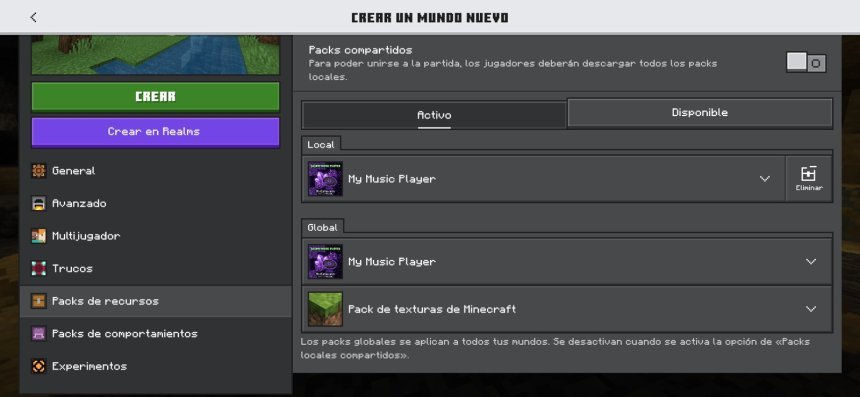
After importing, go to Minecraft’s main menu and open Settings. Scroll down to Global Resources. Under Available Resource Packs, find the Icy PvP Pack 32x and click the plus sign to activate it. It should move to the Active section. If you have other texture packs active, you can drag this one to the top to give it higher priority. Once it’s active, return to the main menu. The pack will automatically load in your next world or server session.
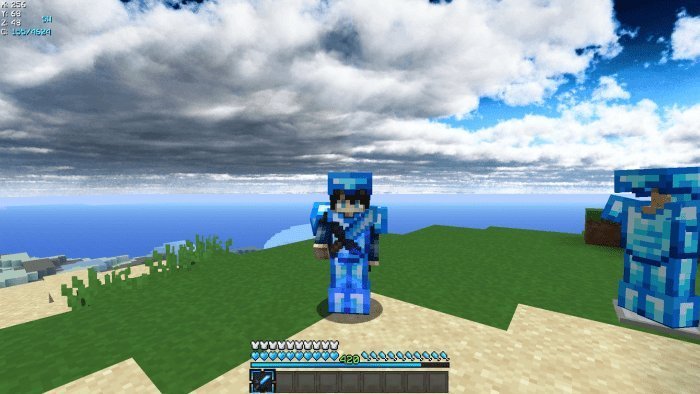
Now you can test the pack in action. Open a PvP world or join a popular Bedrock server like The Hive, CubeCraft, or NetherGames. You’ll notice the icy blue tones right away. The swords, armor, and tools look sharper, and blocks have cleaner outlines. The cool colors make enemies stand out better, helping you see clearly in fast fights. Even though the textures are higher quality, the 32x resolution keeps performance smooth on most devices. This makes it perfect for Bedwars, Skywars, or Duels where every frame counts.
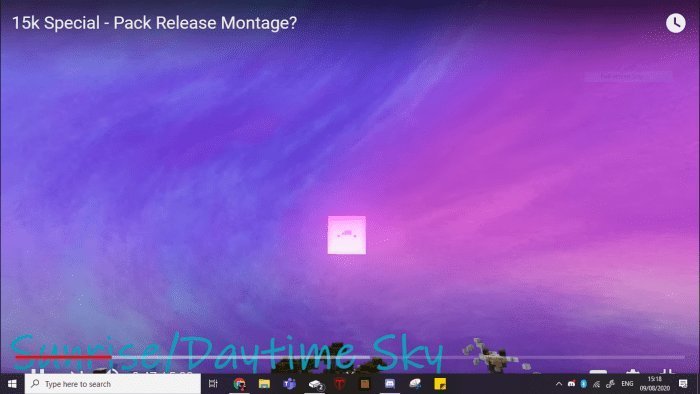
If the pack doesn’t load, don’t worry. Check that you activated it correctly under Global Resources. If the import failed, re download the file and try again. Also make sure your Minecraft is updated to the latest version. Some players have reported a broken sky issue in older versions. If you notice the sky looking strange, visit the MCPEDL comments. Many users share fixes or updated versions there.
One of the main reasons players love the Icy PvP Pack 32x is how it balances visuals and speed. The 32x textures look crisp and clean but aren’t heavy on your device like higher resolution packs. It improves visibility in battles, so you can focus on the fight instead of distracting visuals. The color theme also adds personality to your game. Everything feels cold and sharp, like you’re battling inside a frozen arena.
The pack combines the best features of popular PvP packs. From Epaxial 50K you get clean armor and weapon designs. From BedlessNoob 15K you get smooth shading. Rainbow Eclipse brings colorful inspiration for details. Terra gang added their own touches to tie everything together. The result is a polished PvP pack that looks professional but still feels fun and easy to play with.
Players using Windows 10 or mobile devices will have the smoothest experience since those platforms handle custom texture packs easily. Console players might need to tweak things a bit more, but once it’s imported, performance is usually great. The pack doesn’t lag, even during intense fights, and works fine with shaders or other small packs if you want to experiment.
If you ever want to remove or switch packs, you can do that anytime. Just go back to Settings, open Global Resources, and deactivate the pack by clicking the minus sign. It’s always safe to keep the file stored on your device in case you want to reinstall it later.
The Icy PvP Pack 32x has stayed popular since its release because it strikes the right balance between looks and performance. Many players still use it years later because it feels modern and smooth across updates. Even if you’re new to PvP, this pack makes your world look cleaner and easier to play in.
In short, downloading and installing the Icy PvP Pack 32x for Minecraft Bedrock Edition is simple. You just need to make sure your game is updated, download from MCPEDL, open the .mcpack file, and activate it in your settings. Once that’s done, jump into your favorite PvP mode and enjoy the icy visuals. It’s one of the easiest ways to upgrade your game and stand out from other players. Whether you’re on Windows, mobile, or console, this pack delivers smooth gameplay and a cool look that never gets old.
Share
What's Your Reaction?
 Like
0
Like
0
 Dislike
0
Dislike
0
 Love
0
Love
0
 Funny
0
Funny
0
 Angry
0
Angry
0
 Sad
0
Sad
0
 Wow
0
Wow
0